UniTV Fire Stick
Learn how to download and install UniTV on a Fire Stick running Fire OS. This guide shows you how to choose the right APK, use Downloader, and test the app with your remote. It also explains why the APK won’t work on Vega OS devices.
UniTV Fire Stick: How to Download and Set It Up on Fire OS
Before downloading UniTV, check that your Fire TV Stick runs Fire OS and allows app installation through Downloader. The APK on this page is for compatible Fire OS devices. In one recorded test, it installed and opened, but the device model and Fire OS version were not noted. Results may vary on other devices.
Important: The Fire TV Stick 4K Select uses Vega OS. This Android APK will not work on that model. Do not download it for a 4K Select.
Check Whether Your Fire Stick Uses Fire OS or Vega OS
On your Fire Stick, open Settings > My Fire TV > About and check the device name and system information. Make sure the device is compatible before downloading or changing any settings.
| What you see on your device | What to do |
|---|---|
| Fire OS asks to allow apps from outside the Amazon Appstore. | Continue only if your device lets you give Downloader permission to install apps. |
| Your Fire OS menus look different from these steps. | Menu names can vary. Follow the options shown on your device. |
| Your device is a Fire TV Stick 4K Select or shows Vega OS. | Stop here. Vega OS does not support the Android APK on this page. |
| You are not sure which model or system you have. | Return to Settings > My Fire TV > About and check before downloading. |
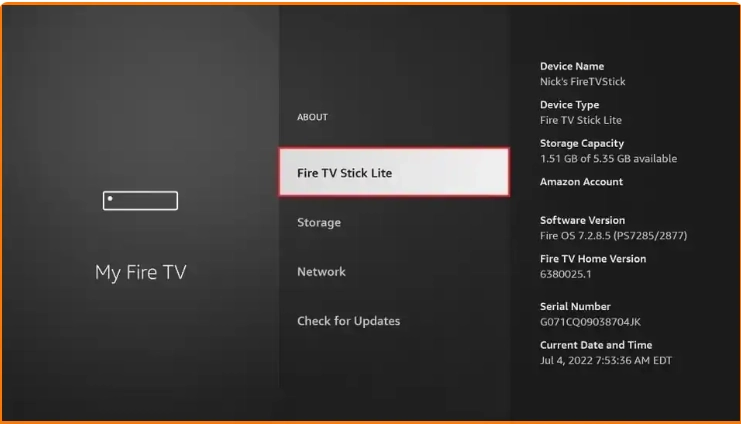
If you see Vega OS, or still cannot identify your device, stop before downloading. The steps below are for Fire OS devices that show an option to allow Downloader to install apps.
If you want to use UniTV on a TV without a Fire TV Stick, check whether the TV is compatible before trying an APK.
Which File Should You Use on a Fire Stick with Fire OS?
Use unitv_box_para_tv_stick.apk on a compatible Fire TV Stick running Fire OS. This file is separate from the homepage APK and the Android TV Box APK.
| File details | Information |
|---|---|
| App | UniTV |
| File for this device | unitv_box_para_tv_stick.apk |
| File type | Android APK |
| Recommended device | Fire TV Stick with Fire OS |
| Test date | June 9, 2026 |
| Test result | The APK installed and opened on one Amazon Fire TV Stick. |
The recorded test does not include the device model, Fire OS version, APK size, or app version. The result may be different on other devices.
Set Up Downloader and Check App Permissions
Install the Downloader app from the Amazon Appstore. Then check whether your Fire Stick lets you allow installations through that app. Menu names can differ between devices, so use the options shown on your screen.
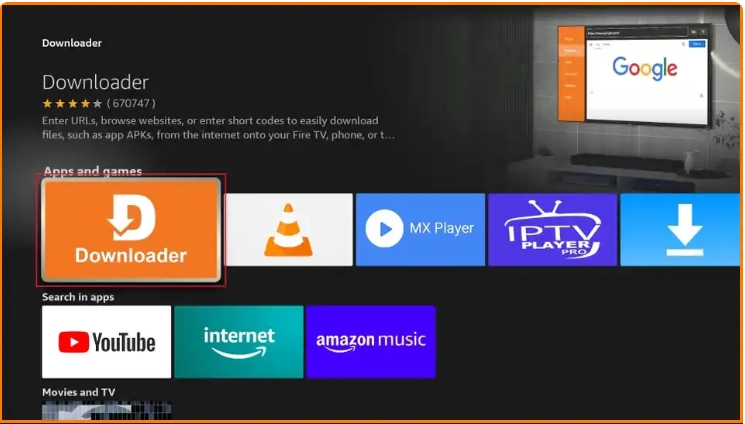
From the Fire TV home screen, select Search and look for Downloader.
Install Downloader from the Amazon Appstore, then open it once.
Go to Settings > My Fire TV and check for Developer options.
If available, open Install unknown apps or Apps from unknown sources. The name may vary.
Allow Downloader to install apps, then return to the app.
Amazon’s documentation says Developer Options is not supported on Fire OS 14. If you cannot find a clear option to allow Downloader, do not keep trying menu instructions written for older devices.
How to Download and Install UniTV on a Fire Stick
After installing Downloader, open this article inside the app. Enter the full page address; you do not need to use an outside link or code.
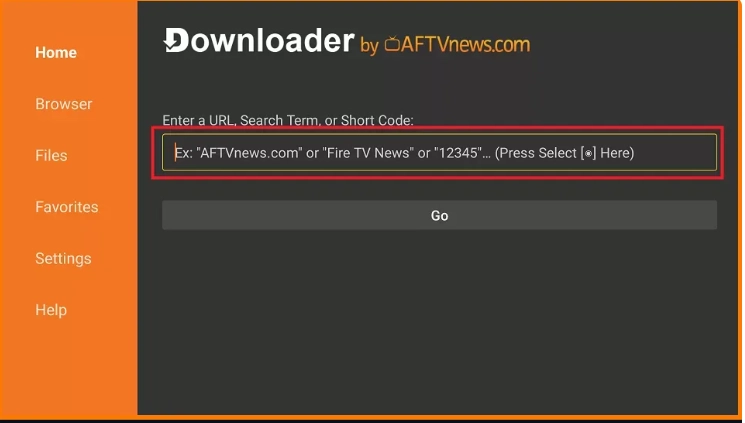
Open Downloader and select the address bar.
Enter myunitvnet.com, then select Go.
Scroll to Download UniTV for Fire Stick and select the button once.
Wait for unitv_box_para_tv_stick.apk to finish downloading.
When the installer opens, check the app name and select Install.
After installation, select Open and test the app before deleting the downloaded file.
Wait for the download to finish. Avoid pressing OK repeatedly or restarting the download while it is still loading. This can leave extra or incomplete files.
Test the App with Your Fire Stick Remote
After installation, check whether the app responds to the remote before changing settings or downloading the APK again.
- Check that the app opens and stays on its first screen.
- Use the arrow buttons to move between items.
- Press OK and Back to check that they work.
- Close the app, open it again from the app list, and repeat the test.
If the app opens but the remote cannot move through the screen, note where it stops responding. Downloading the APK again may not fix a control problem.
This is a basic test of opening the app and using the remote. It does not test long video playback, every channel, or other Fire TV Stick models.
What to Do If the APK Won’t Install or Open
Read the message on your screen before downloading the APK again. Different messages can point to different problems.
| What happened | What to check first |
|---|---|
| You cannot find an option to install apps from outside the Appstore. | Check the device model and system under Settings > My Fire TV > About. Do not follow Fire OS instructions on a Vega OS device. |
| The download did not finish. | Check your internet connection and available storage. Remove only the incomplete file, then try again. |
| The installer shows a conflict or compatibility message. | Write down the full message. The device may not support the file, or another app may be causing a conflict. |
| Your device says there is not enough space. | Free up storage, restart the Fire Stick, then try again. |
| The app opens and then closes. | Restart your device and open the app once more. If it closes again at the same point, follow the steps for fixing UniTV when it stops working. |
| The remote cannot move through the first screen. | Close and reopen the app. Test the arrow, OK, and Back buttons again. If they still do not respond, note where the problem occurs. |
Before removing another app version or clearing app data, write down the on-screen message. Changing several things at once can make it harder to find the cause.
Conclusion: Check Your Fire Stick Before Installing
First, confirm that your device runs Fire OS and shows an option to allow Downloader to install apps. Use unitv_box_para_tv_stick.apk only on a compatible Fire OS device. After installation, open the app and test the remote’s arrow, OK, and Back buttons.